


Create a Branch
The default branch for VStory is the develop branch. Whether it's for feature development, bug fixes, or documentation writing, please create a new branch and then merge it into the develop branch. Use the following code to create a branch:
// Create a documentation or demo branch
git checkout -b docs/add-funnel-demo
Find or Create an Issue
In principle, we require that every pull request has a corresponding issue. Before starting development, please make sure there is a corresponding issue that has not been claimed.
Search for Documentation Issues
You can search for documentation-related issues using the following method:
is:open label:docs
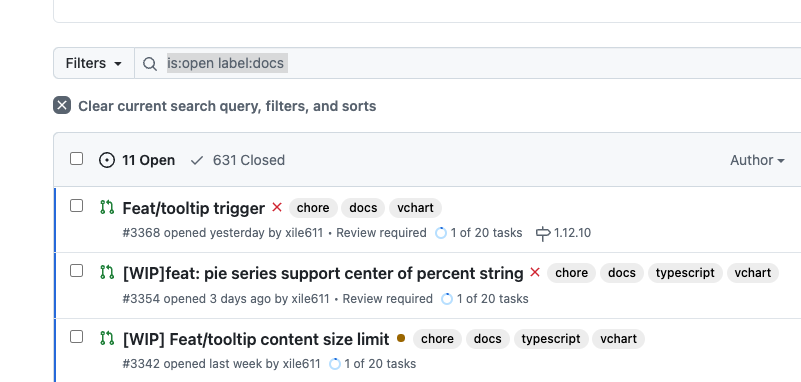
Some features may be associated with the "doc" label, so you can further check if the issue is purely a documentation task.
Create a Documentation Issue
Click on "NEW ISSUE" to open the issue selection page, then choose "Documentation Request".
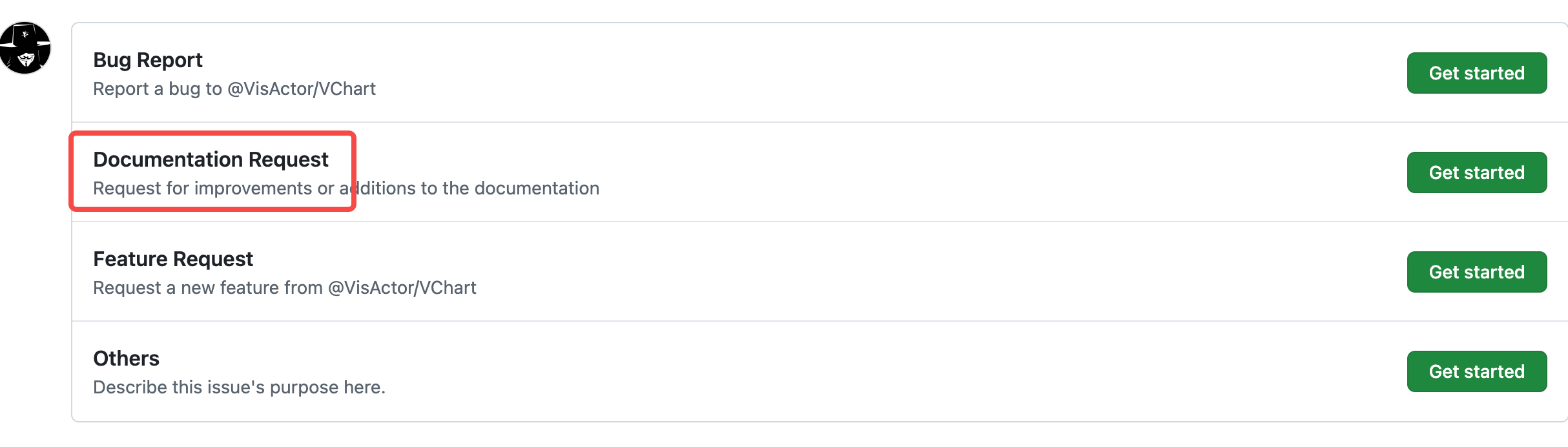
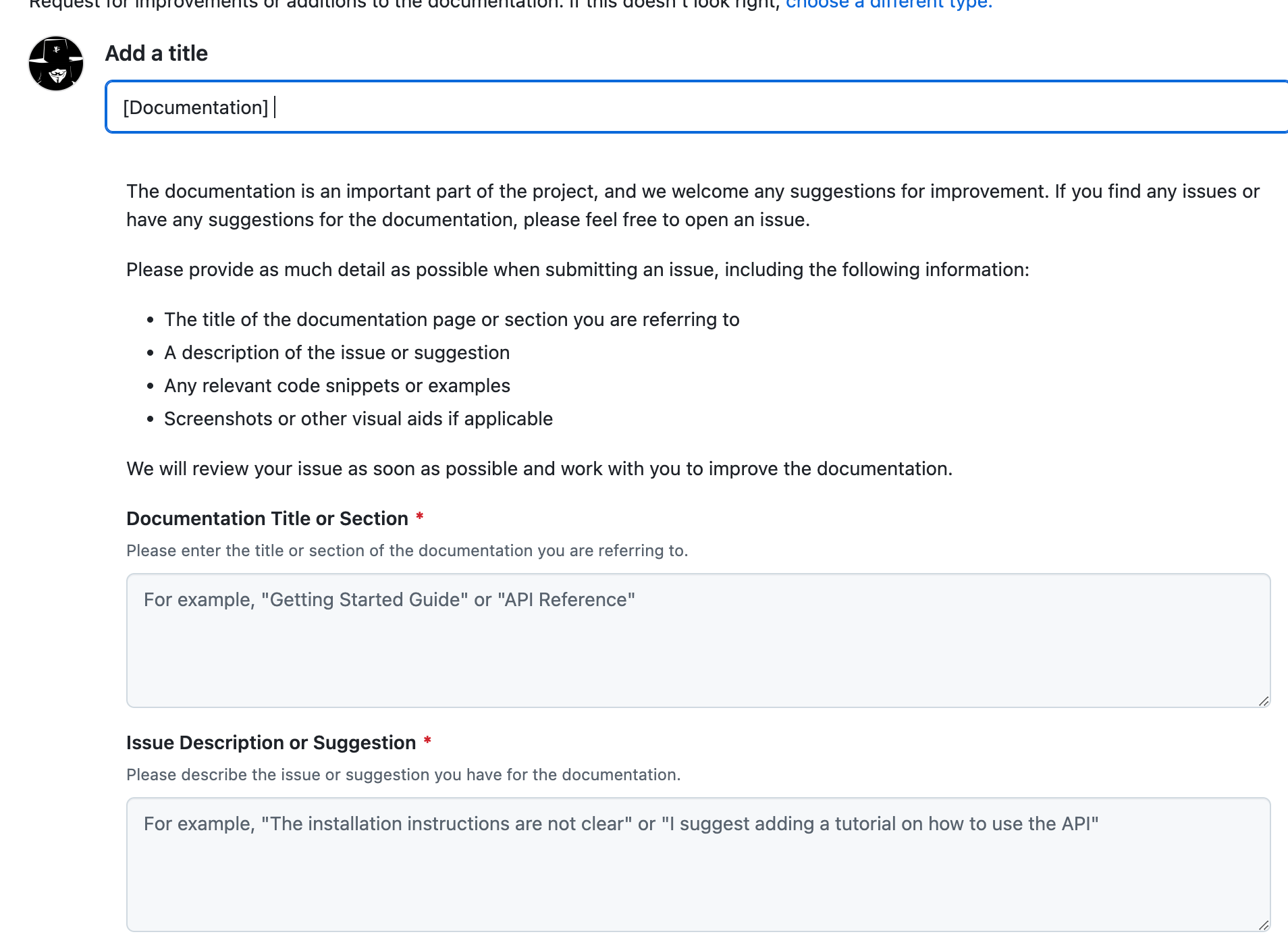
Fill in the relevant information for the documentation issue you want to submit.
Claim an Issue
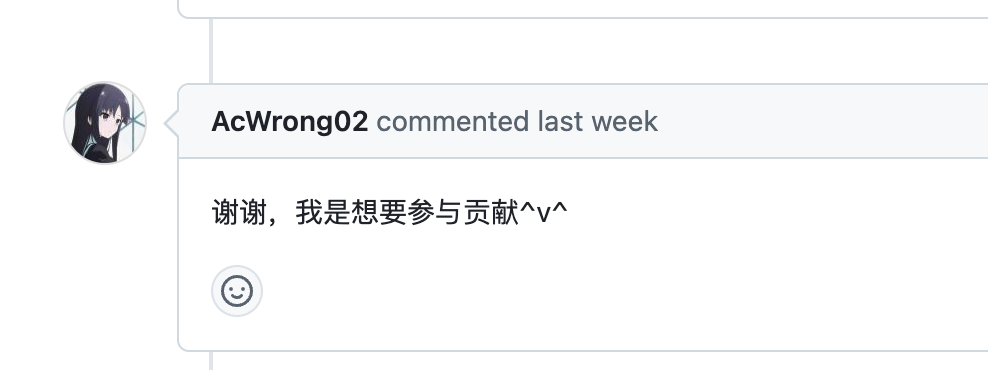
If you want to write or modify documentation, you can leave a message under the issue to claim it. An administrator will contact you, confirm, and then assign the issue to you.
For example:
Create or Modify Documentation
The location of VStory documentation and demos in the project is as follows:
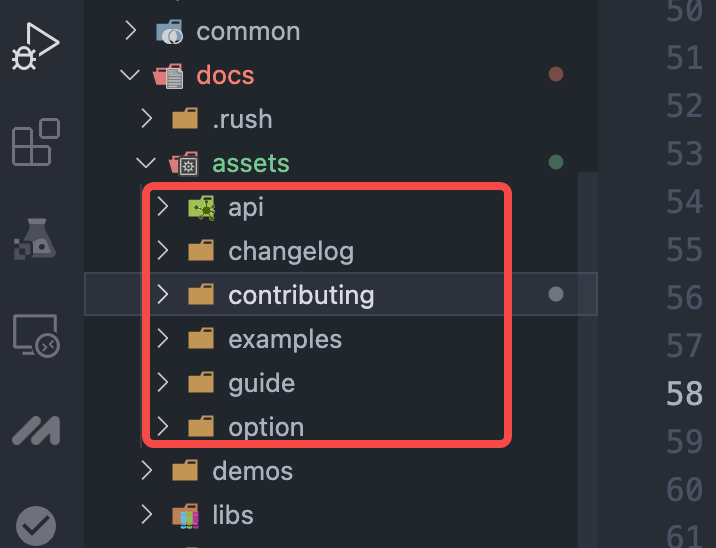
Currently, the types of documentation are as follows:
- examples: Chart examples, corresponding to the site: https://www.visactor.io/vstory/example
- guide: Tutorials, corresponding to the site: https://www.visactor.io/vstory/guide/tutorial_docs/VStory_Website_Guide
Find the location of the corresponding documentation for additions or modifications. Note that some documents also need to maintain the "menu.json" file.
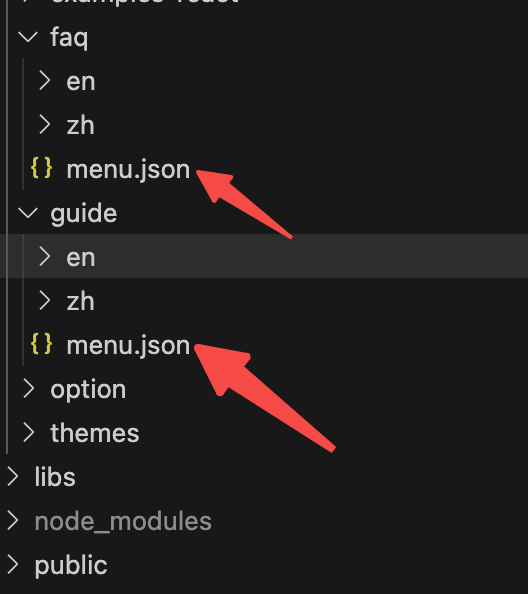
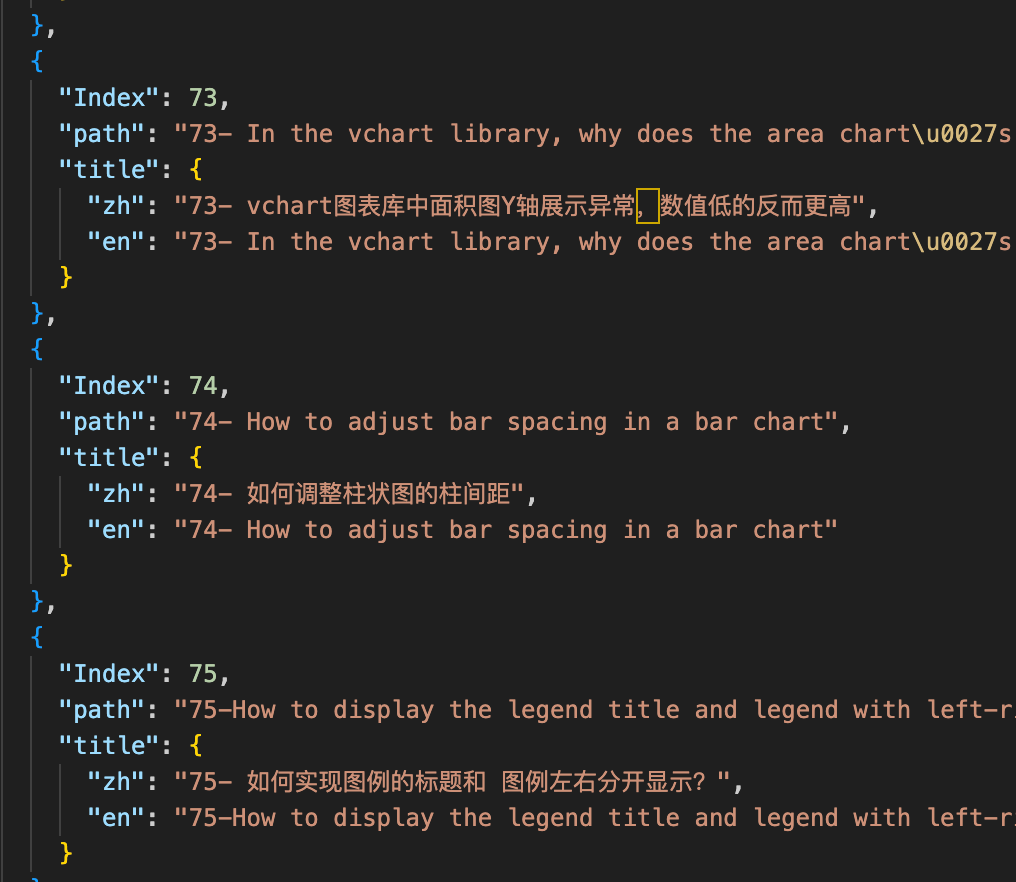
This file corresponds to the final display position and name of the document on the site. For example:
Use Marscode AI Programming Assistant for Documentation Writing
Marscode AI Programming Assistant can provide comprehensive assistance throughout the documentation creation process.
If you have not installed Marscode AI Programming Assistant yet, please download it from this link: https://www.marscode.cn/home?utm_source=developer&utm_medium=oss&utm_campaign=visactor_a
In documentation writing, using the context command appropriately can improve the accuracy of the content.
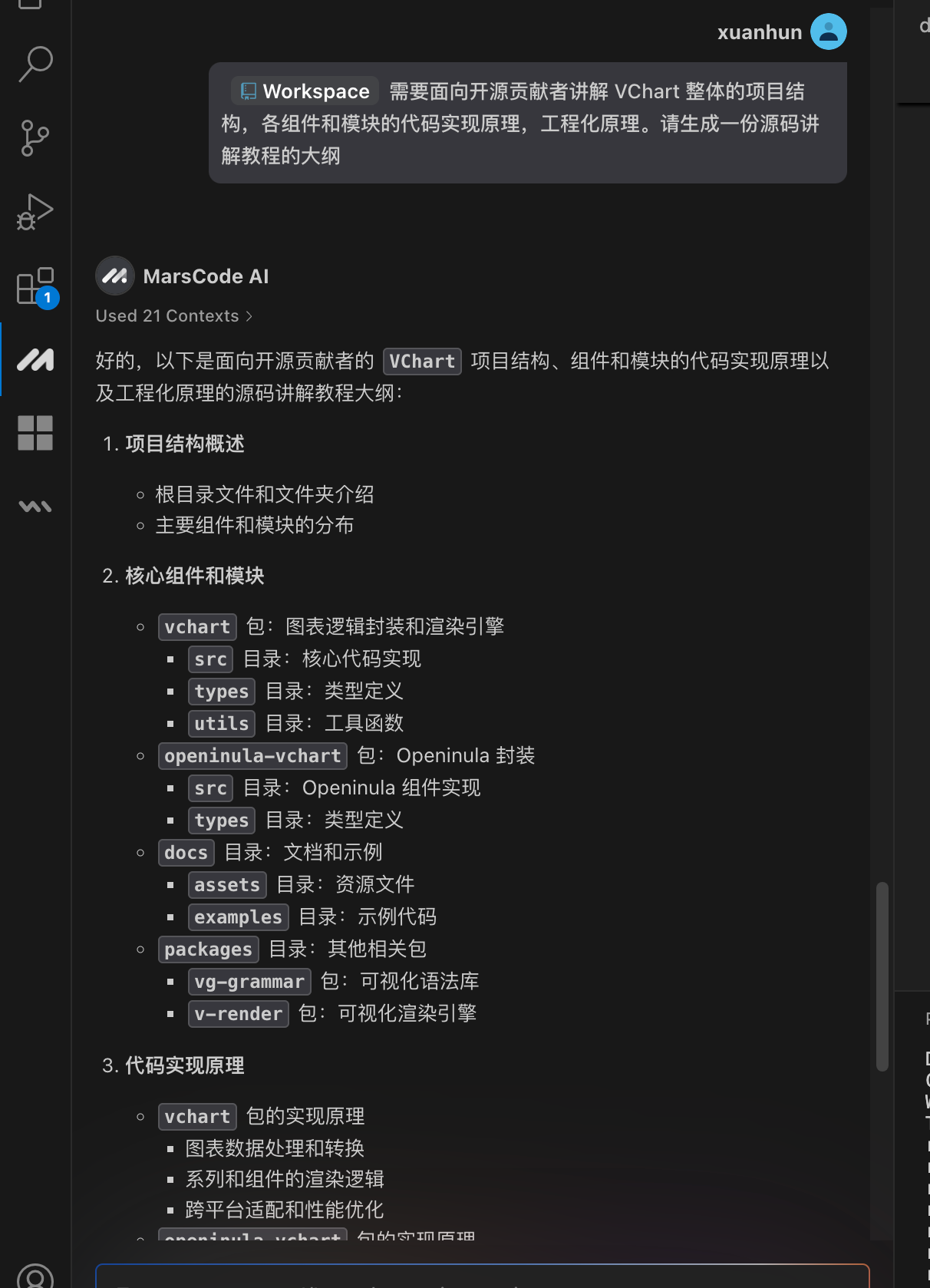
Provide Documentation Writing Ideas
Here, invoke #Workspace, then ask for help in generating a developer documentation outline.
Generate Project Structure Explanation
Here, invoke #Workspace, then ask for help in generating a project structure explanation document.
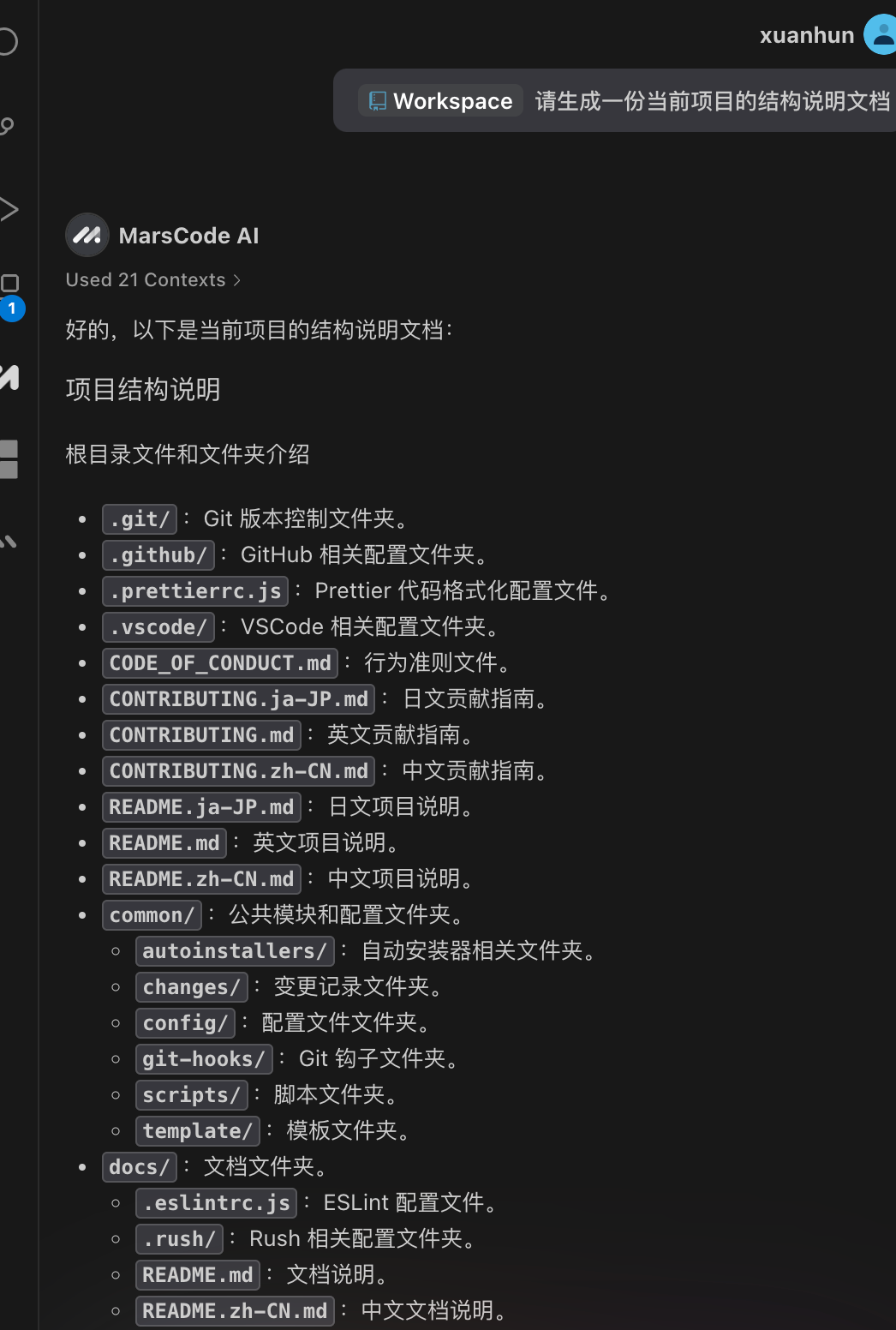
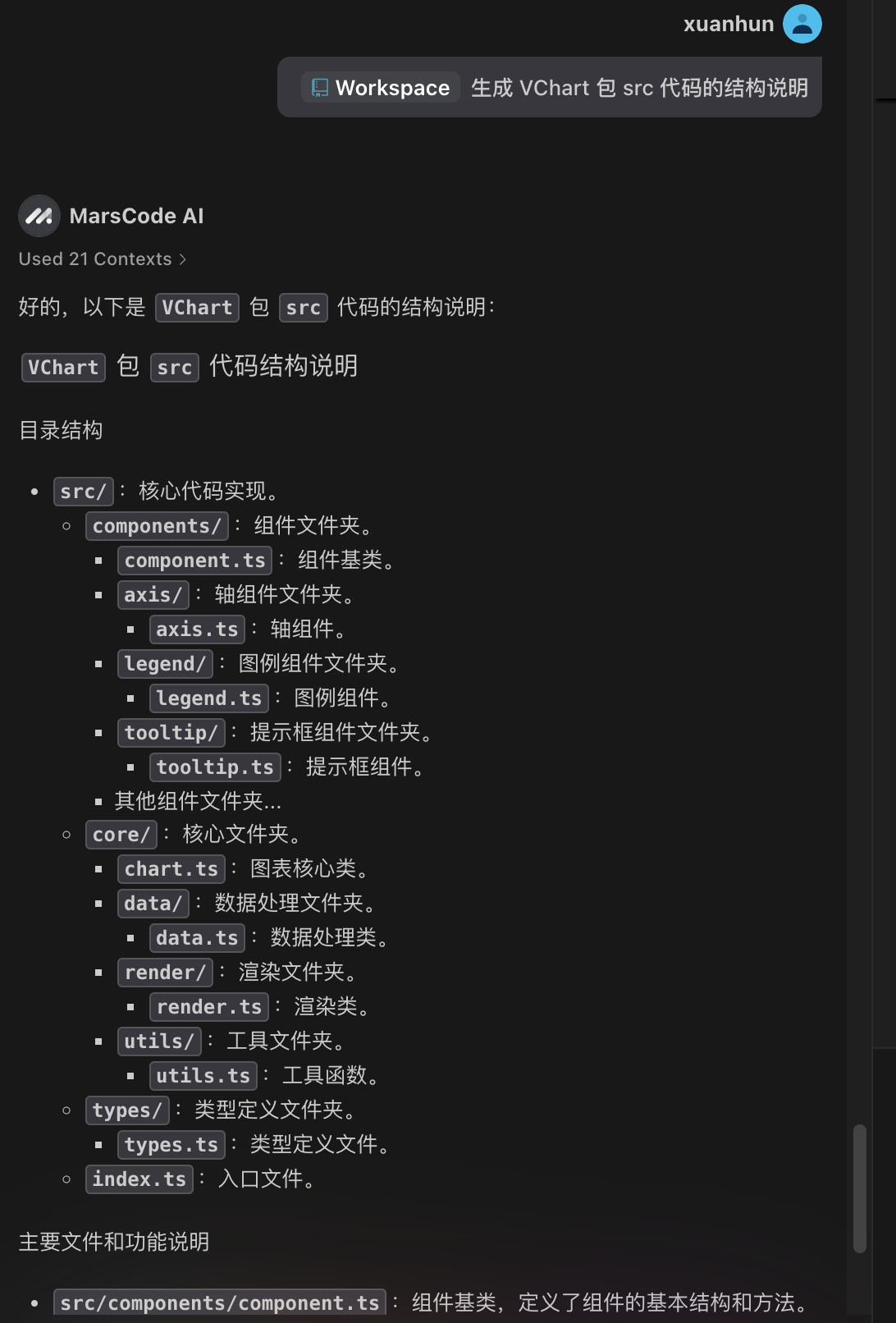
You can further inquire about subfolders.
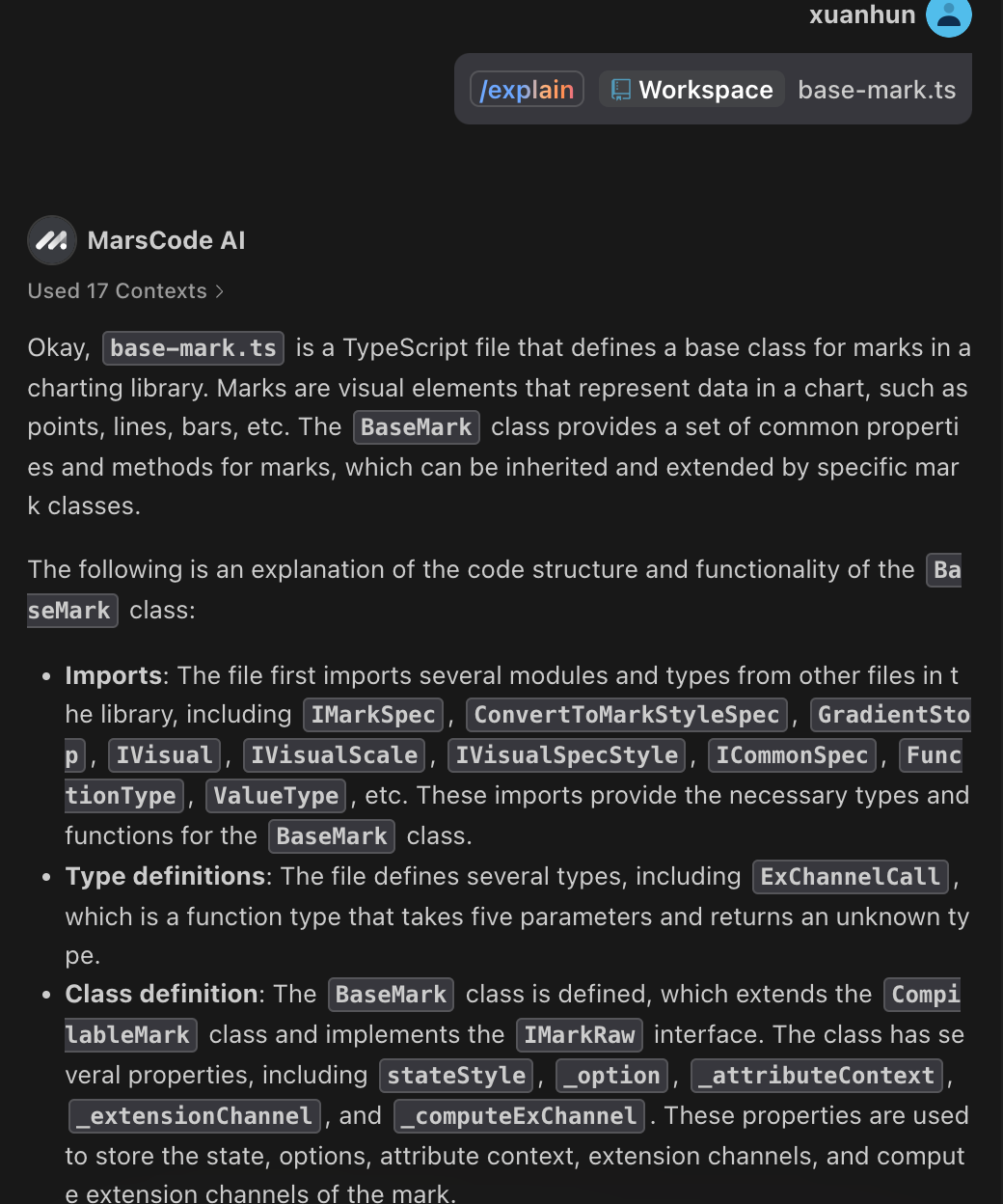
Generate Code Explanation
Generate Code Explanation
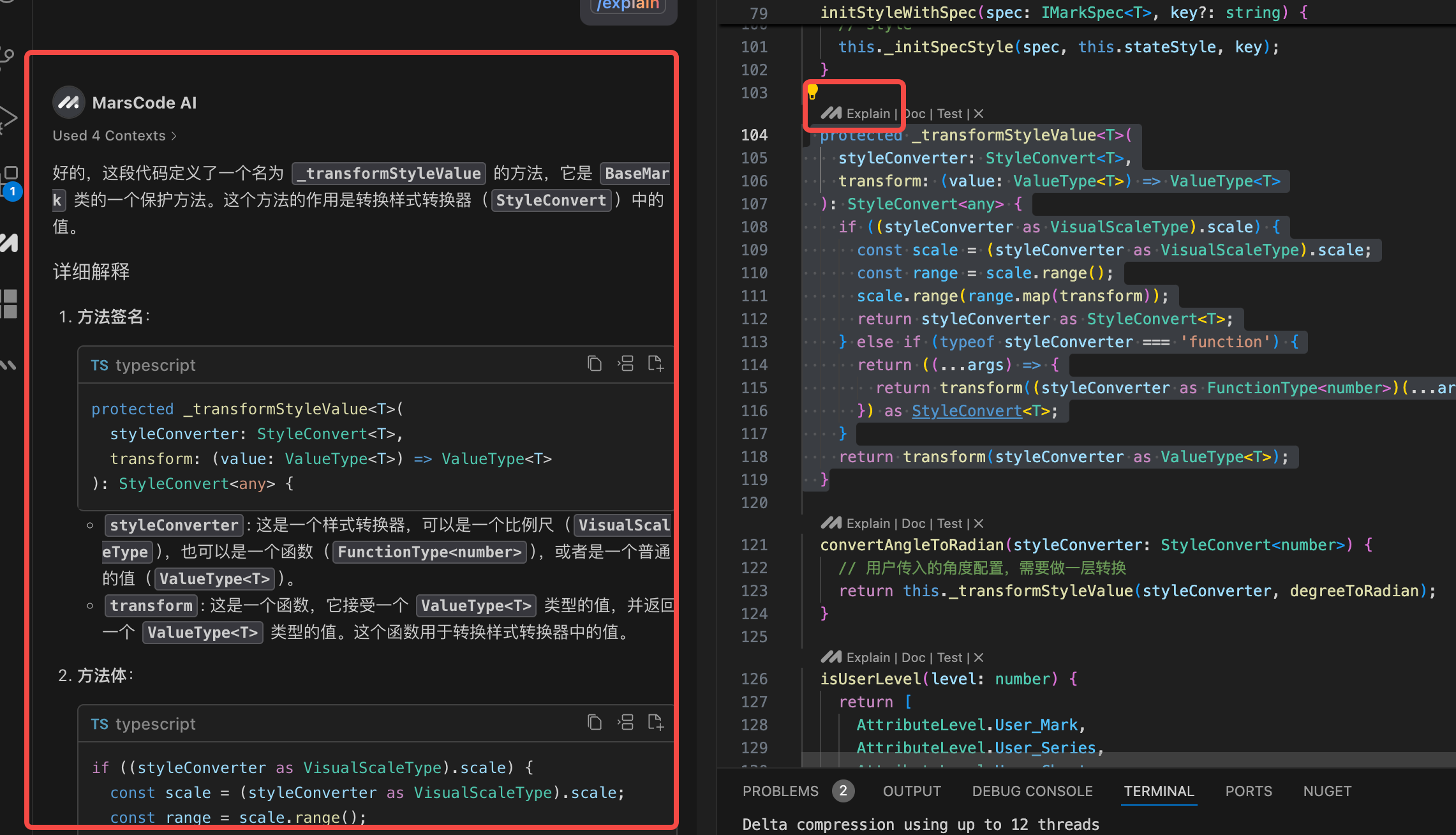
When selecting a piece of code in a file, you can choose the Explain command from the floating menu, and Marscode will generate a detailed code explanation for you. You can then review and adapt it as needed.
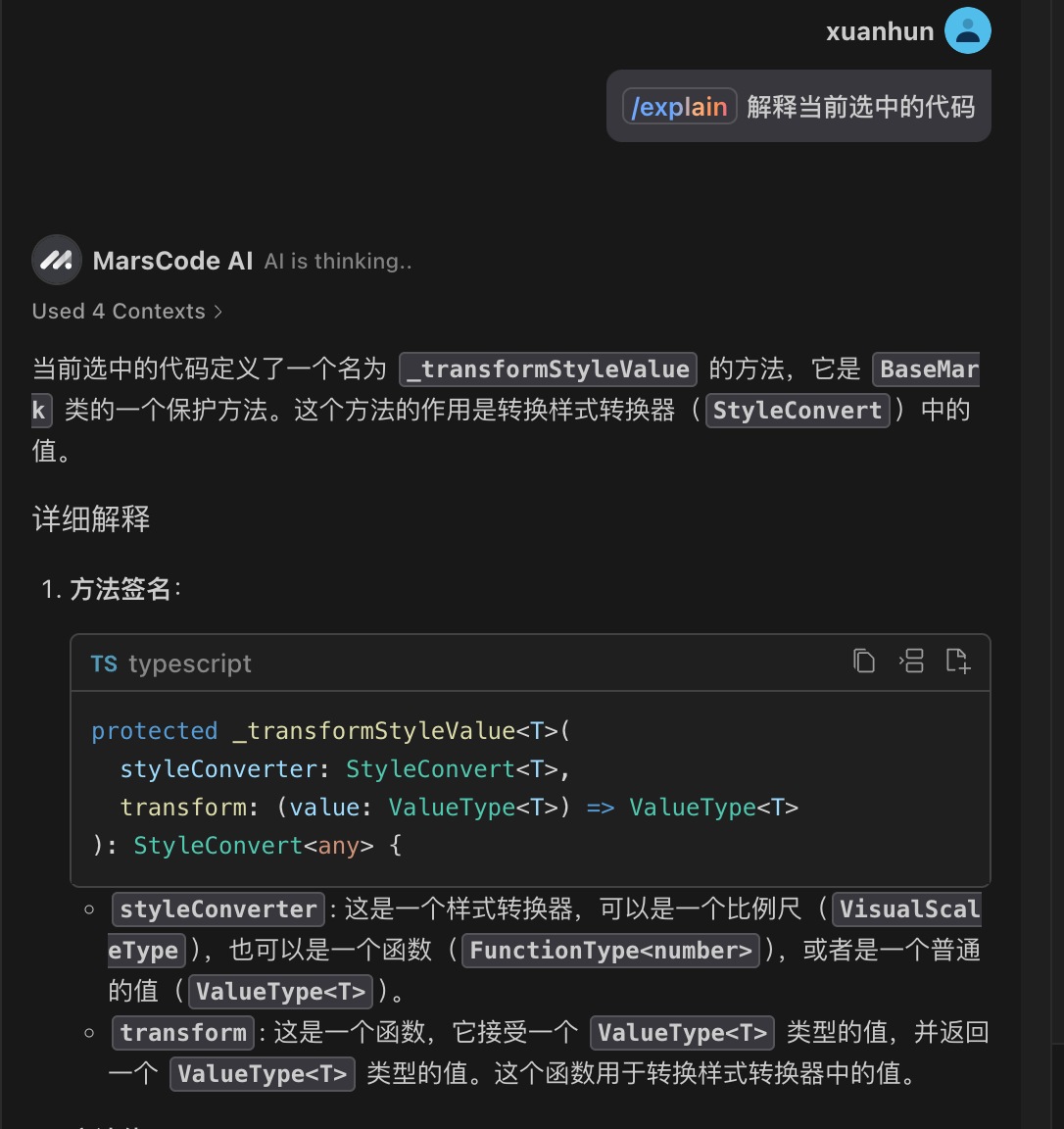
You can also directly input the Explain command in the dialog box.
You can also use the #Code context mentioned above to combine Explain with your instructions for more detailed tasks.
Generate File Explanation
Explain can be used in conjunction with Context or Files commands to generate an explanation document for the entire file.
Generate Sample Code
To better explain principles and usage, it is often necessary to provide runnable demos. You can use Marscode's code generation capabilities to generate sample code. However, please note that the accuracy of AI-generated code may need further verification.
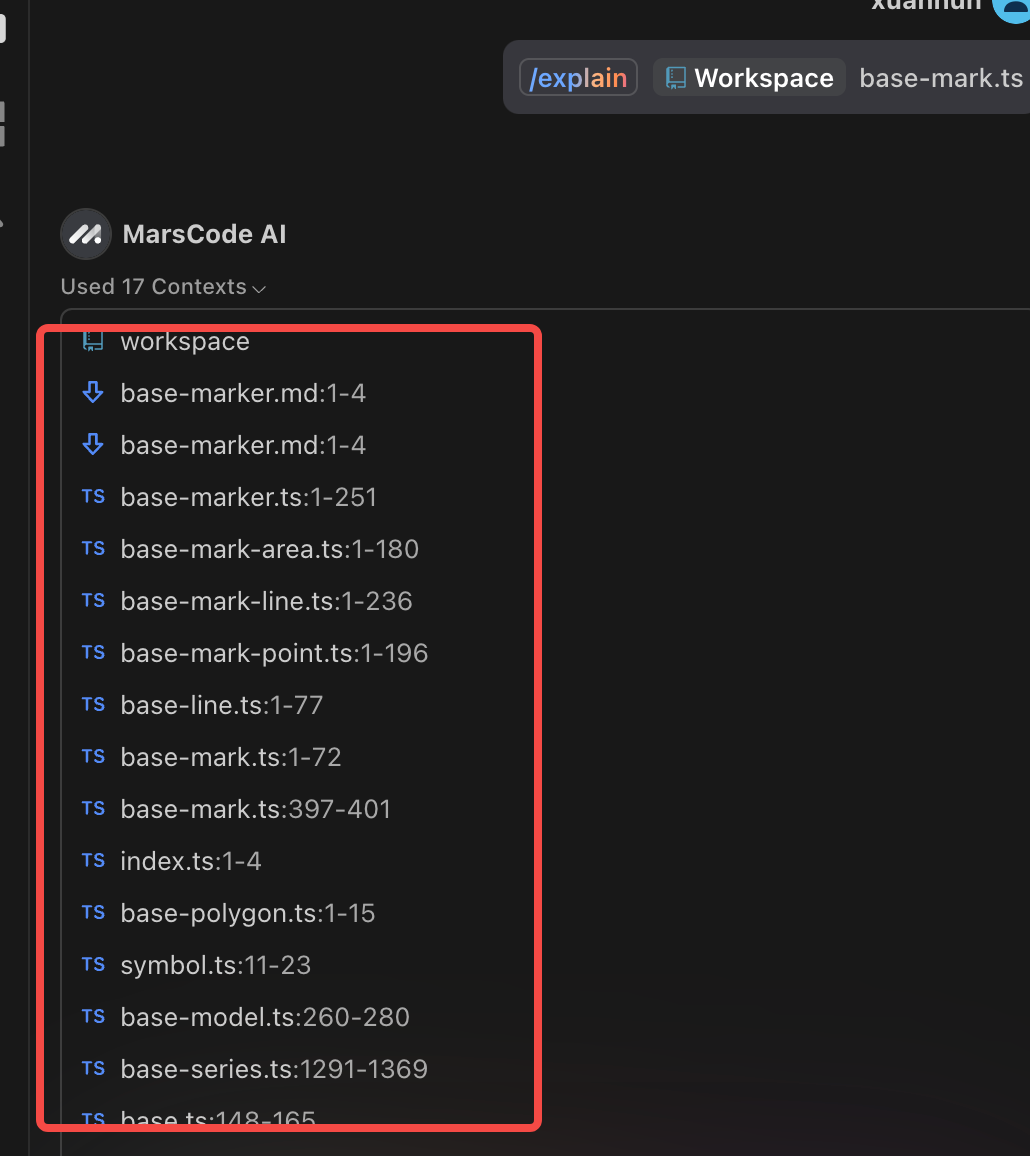
Content Retrieval
Typically, each question and answer provided by Marscode will provide reference documents, which can provide more context for further analysis.
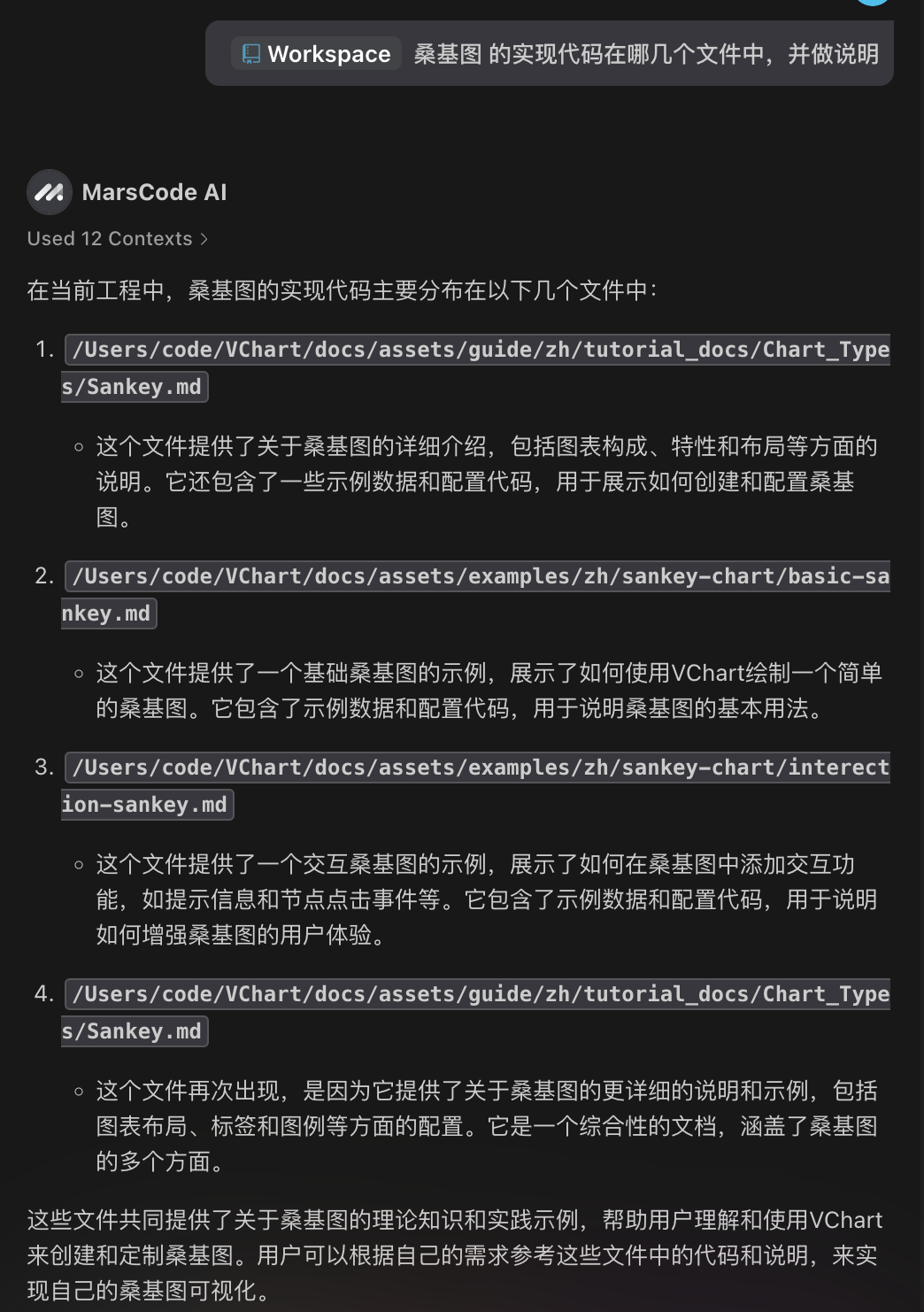
You can also directly search for files:
Translate Documentation
VisActor's documentation needs to be provided in both Chinese and English, and Marscode can assist with translation.
Submit Code
After completing the documentation, push the code to your remote branch. For example:
git commit -a -m "docs: add custom funnel demo and related docs"
VisActor's commit messages follow the Conventional Commits specification:
<type>[optional scope]: <description>
Common type values include docs (documentation, log changes), feat (new feature), fix (bug fix), refactor (code refactoring), etc. Please choose according to the actual situation.
Write a short and precise description in English.
Before submitting the commit, we will perform a commit lint check. You can check the specific rules here.
A common issue is when the upstream (@visactor/vstory) has been updated, which may cause conflicts when submitting a Pull Request. Therefore, before submitting, merge the commits from other developers with your own. Switch to the develop branch using the following code:
git checkout develop
Pull the latest code from the remote:
git pull upstream develop
Switch back to your development branch:
git checkout docs/add-funnel-demo
Merge the commits from develop into your branch:
git rebase develop
Push the updated code to your branch:
git push origin docs/add-funnel-demo
Submit a Pull Request
You can click on the Compare & pull request button on your GitHub repository page.

Or create one through the contribute button:
Fill in the modifications for this submission according to the template:
- Check the type of modification
- Fill in the associated issue
- If there are complex changes, explain the background and solution
After filling in the relevant information, click on Create pull request to submit.
An administrator will review the PR to decide whether to approve it. If it is not approved, modifications will be required before resubmitting.
Next Steps
Different types of documents have specific requirements for demo documents, which can be referred to in the "How to Contribute to Demos" section.
You can continue to try different types of tasks.
GitHub: github.com/VisActor
VisActor WeChat subscription account (you can join the WeChat group through the subscription account menu):

VisActor Official Website: www.visactor.io/
Feishu Group:

Discord: https://discord.com/invite/3wPyxVyH6m